Large PDF documents can quickly become difficult to manage. Reports, presentations, contracts, or internal files often contain unnecessary pages, incorrect page order, or sections that make the document harder to review.
If you need to organize large PDF documents before sharing, a few simple changes can make the file easier to navigate and more professional to present.
Table of Contents
Why Organize Large PDF Documents Before Sharing?
A disorganized PDF creates friction for the person opening it. Important information may be harder to find, page order can feel confusing, and oversized files may be less practical to send or store.
Taking time to organize PDF documents before sharing improves readability and makes reports, proposals, and business files easier to review.
A cleaner structure also creates a more professional impression.
Extract Only the Pages You Need
Large PDF documents often include pages that do not need to be shared. These may include draft sections, duplicate pages, blank pages, outdated information, or appendices that are not relevant to the final version.
Instead of sending the entire file, extracting only the necessary pages helps organize large PDF documents more effectively and makes the final file easier to review.
You can do this in a few simple steps:
- Open the Extract Pages tool.
- Upload your PDF document.
- Enter the pages you want to keep (for example: 1–5, 8, 10).
- Generate the new PDF file.
- Download the organized version.
Reorder PDF Pages for Better Document Flow
Page order has a direct impact on readability.
Even when all the right content is included, a PDF can feel confusing if sections appear in the wrong sequence. Cover pages, summaries, supporting materials, and appendices should follow a logical structure.
Reordering pages is one of the easiest ways to organize PDF documents and improve the reading experience.
To reorganize your PDF:
- Open the Reorder Pages tool.
- Upload your PDF.
- Drag and drop page thumbnails into the correct order.
- Review the new sequence.
- Download the reorganized file.
Merge Related PDF Files into One Organized Document
If your content is spread across multiple files, combining them can make sharing much easier.
Instead of sending several attachments, merging related PDFs into one organized document improves convenience and keeps everything in one place.
This works well for proposals, onboarding materials, reports, and multi-part business documents.
To combine multiple PDF files:
- Open the Merge PDF tool.
- Upload all PDF files you want to combine.
- Arrange the files in the correct order.
- Click merge.
- Download the final PDF.
Split Large PDF Documents into Smaller Files
Sometimes a document is simply too large to share efficiently as a single file.
Splitting a PDF into smaller sections can make it easier to send, review, or distribute different parts to different recipients.
This is especially useful for presentations, long reports, or documentation packages.
If you need to split the file, the process is simple:
- Open the Split PDF tool.
- Upload your file.
- Select how you want to split the document.
- Generate separate PDF files.
- Download the new files.
Organize Large PDF Documents Online
Managing large PDFs manually can be slow, especially when multiple changes are needed.
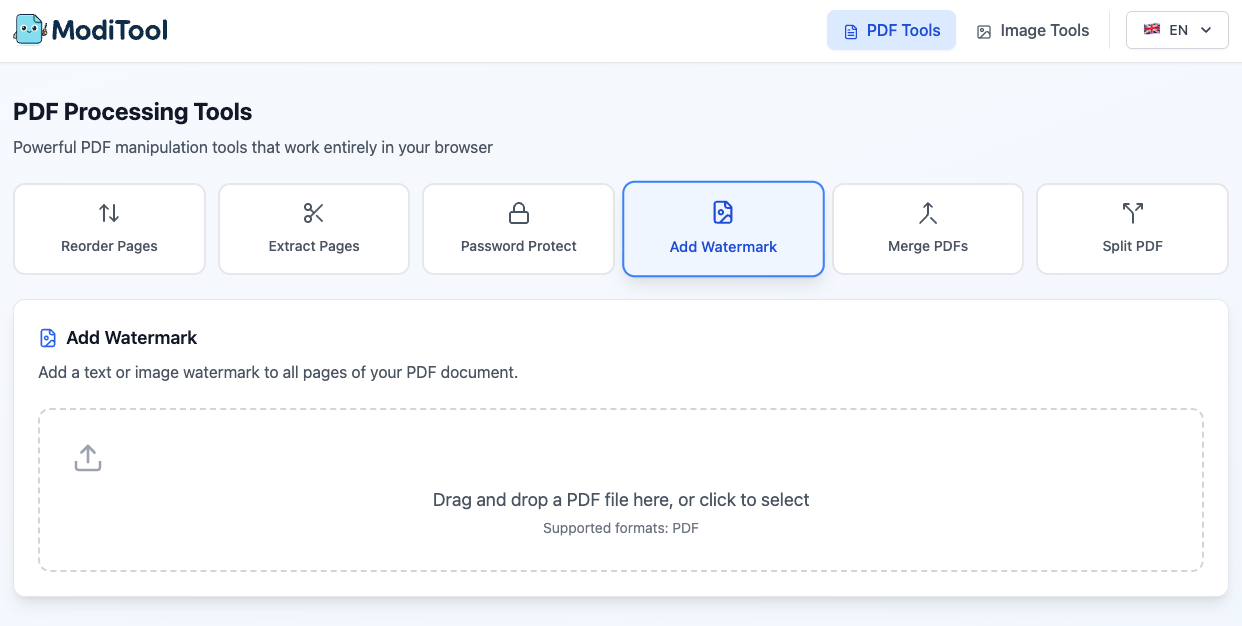
With ModiTool, you can extract pages, reorder sections, merge related files, or split large documents directly in your browser to organize large PDF documents before sharing.