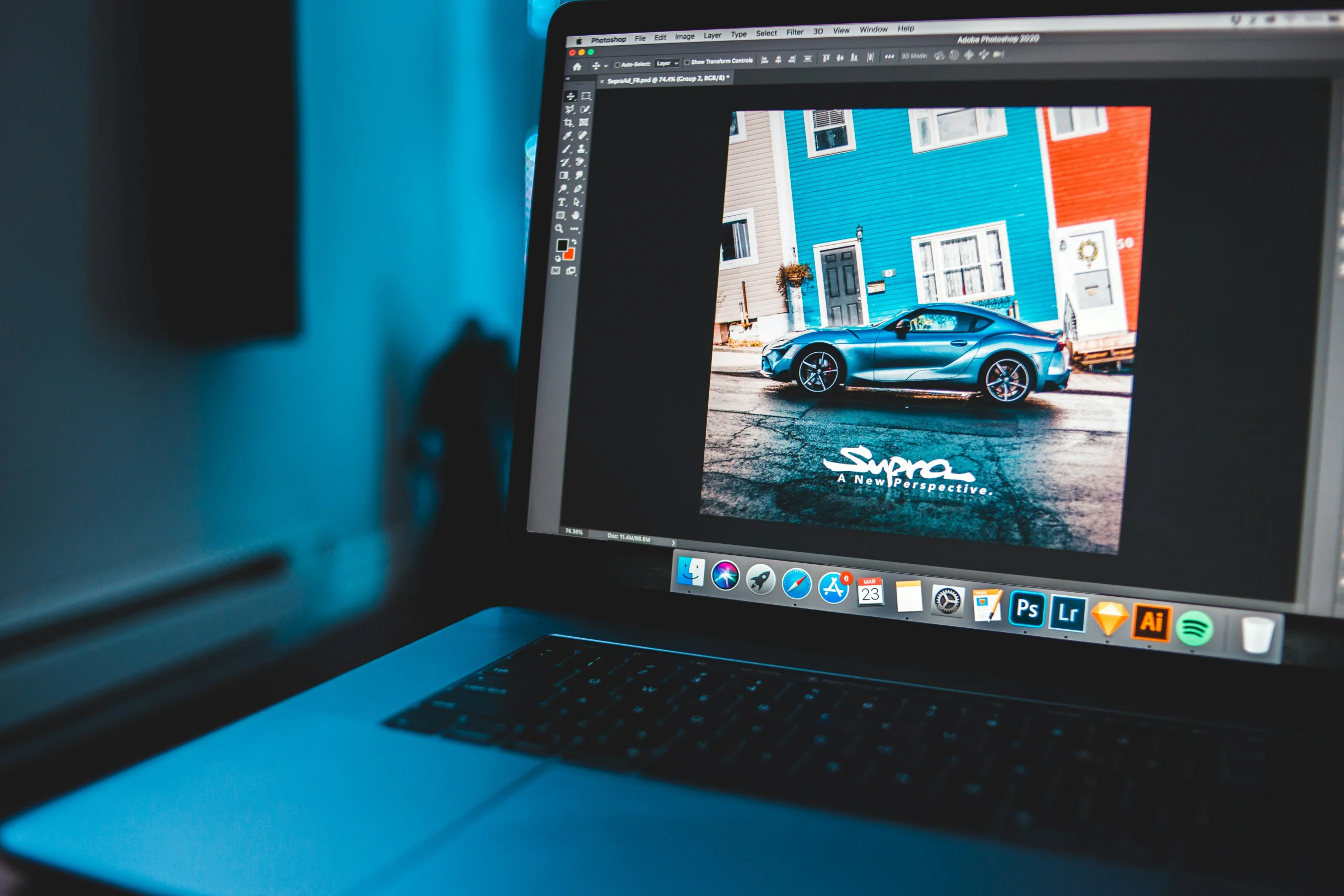
Cropping is one of the easiest ways to improve an image. Whether you’re removing unwanted background elements, adjusting the composition, or preparing a photo for a website or social media, cropping helps you focus on the most important part of the image.
A precise crop can improve composition, remove distractions, and prepare an image for its final destination without reducing the sharpness of the area you keep.
Table of Contents
Does Cropping an Image Reduce Quality?
Cropping itself does not automatically reduce the quality of the part of the image you keep. Instead, it removes the pixels outside the selected area while preserving the remaining content.
However, the final image will contain fewer pixels than the original if you crop away a large portion of the photo. If that smaller image is later enlarged, it may appear less sharp or become pixelated.
To achieve the best results:
- Start with the highest-resolution image available.
- Crop only as much as necessary.
- Choose an aspect ratio that matches where the image will be used.
- Avoid enlarging heavily cropped images.
Following these practices helps maintain the best possible quality after cropping.
How to Crop an Image Online
The crop tool provides a movable selection frame, two crop shapes, and several aspect-ratio options, giving you control over both the visible area and the final composition.
- Open the Crop Image tool.
- Drag and drop an image into the upload area, or click it to select a file from your device.
- Move the crop frame over the part of the image you want to keep.
- Drag the frame’s handles to adjust the selected area.
- Choose a rectangular or circular crop shape.
- Select 1:1, 4:3, 16:9, or Free, depending on the intended use.
- Check the selected area before saving.
- Click Download cropped.
Review the selected area carefully before downloading to make sure the subject, proportions, and important details remain visible.
Choose the Right Crop for Your Image
Different projects often require different crop styles. Selecting the right shape and aspect ratio before downloading can save time and help your images look more professional.
A square crop (1:1) works well for profile pictures, thumbnails, and many social media platforms. Wide formats such as 16:9 are commonly used for website banners, blog headers, and presentations. The 4:3 ratio is suitable for documents and general photography, while the Free option lets you crop exactly the area you need without fixed proportions.
If you’re creating a profile picture or logo, a circular crop can also provide a cleaner, more polished appearance.
Before saving your image, consider where it will be used. Choosing the correct shape and aspect ratio from the beginning helps the image fit its intended destination without additional cropping or resizing.
With ModiTool Crop Image, you can crop photos in just a few clicks, choose from multiple aspect ratios, and download the result instantly—all without installing additional software.